Installing Another Firmware Version Using a Single File

Before you begin
Make sure to make a backup of your configuration and save the configuration script before proceeding to the next step. For more details, refer to DGW -Configuration Guide - Configuration Backup/Restore and DGW Configuration Guide - Configuration Scripts Import and Export documents published on the Media5 Documentation Portal.
Note:
Our QA tests cover five (5) major releases back for each new release. If you are upgrading from a load older than five (5) major releases back, you must install an intermediate version before upgrading to the newest one.

Depending on the type of protocol you will use, the following procedures must be completed.

Steps
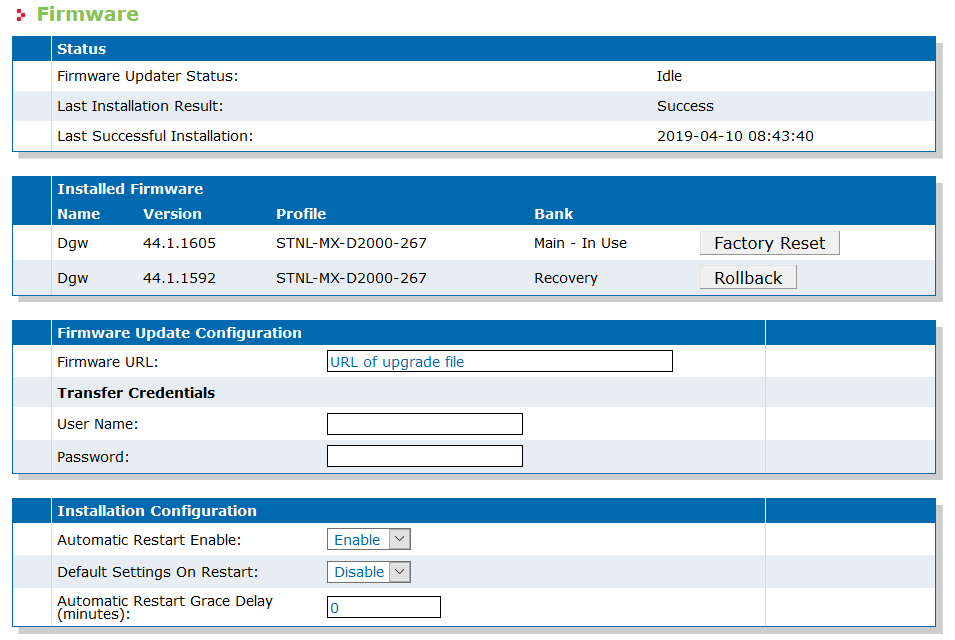
  1. Go to Management/Firmware.
  2. In the Firmware Update Configuration table, in the Firmware URL field, enter the complete URL for the Single File.
    Note:
    For example, http://www.myserver.com/firmware.bin or tftp://myserver/myfolder/firmware.bin
  3. If your server requires authentication, in the Transfer Credentials section, enter your username and password.
  4. If you wish the unit to automatically restart immediately after the upgrade, select Enable from the Automatic Restart Enable selection list of the Installation Configuration table.
    Note:
    If you choose Disable, the unit must be manually restarted in order to complete the upgrade. A message will be displayed to restart the unit.
  5. Apply Install Now.
    Note:
    When the firmware pack update fails, the Mediatrix unit tries to download the firmware three times.
    Note:
    All LEDs will cycle from left to right.
  6. Click Latest FPU status, located at the top of the page.
  7. Click Restart the Unit, located at the top of the page.
    Note:
    You will be redirected to the Reboot page.
  8. Click Restart.
Result
All LEDs will cycle from left to right. The upgrade process should take less than 3 minutes and the unit will be restarted a few times. Once the upgrade will be completed, the new firmware pack version will appear in the Installed Firmware table (Management/Firmware).